
Supplement label and barcode scanner
StackIQ adds a supplement to your stack from its barcode, or from a photo of the Supplement Facts panel when the barcode isn't recognised. It reads the ingredients, amounts, and forms into a product entry you check before saving. You can also search by name or add a product by hand. Scanning is included free.


iPhone and Android · Free to download · Pro optional
How it works
1.Open Scan from the Home screen
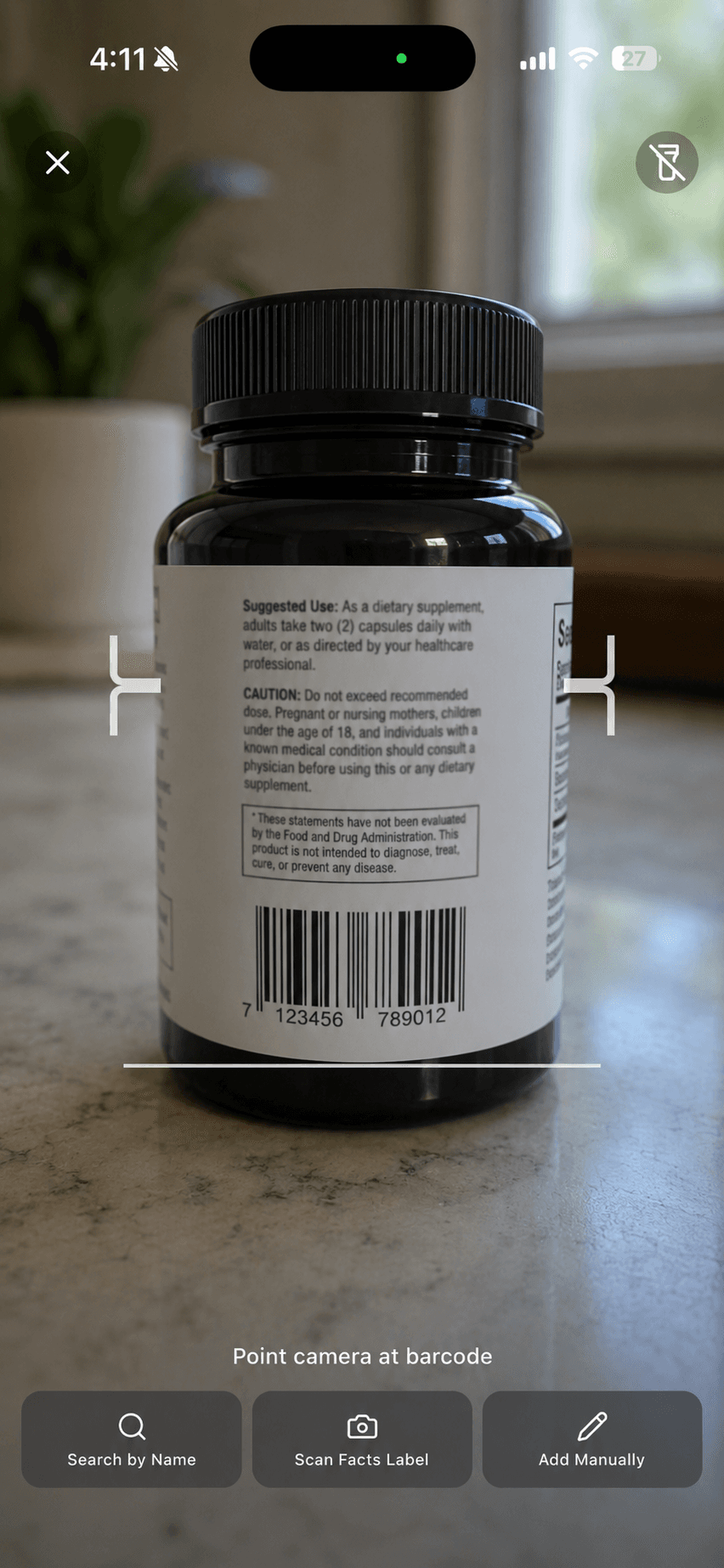
Scan sits at the top of Home, next to the day you're looking at. Point the camera at the barcode and, if the product is in StackIQ's database, its ingredient panel loads straight away.
Opening the scanner from the StackIQ home screen to add a first supplement. 2.No barcode match? Scan the Facts label
Tap Scan Facts Label and photograph the Supplement Facts panel. StackIQ reads each ingredient, the amount per serving, and the form (for example magnesium glycinate, 200 mg) into a structured entry — useful for small brands, new products, and formulas that never made it into a barcode database.
3.Check it, then save to your stack
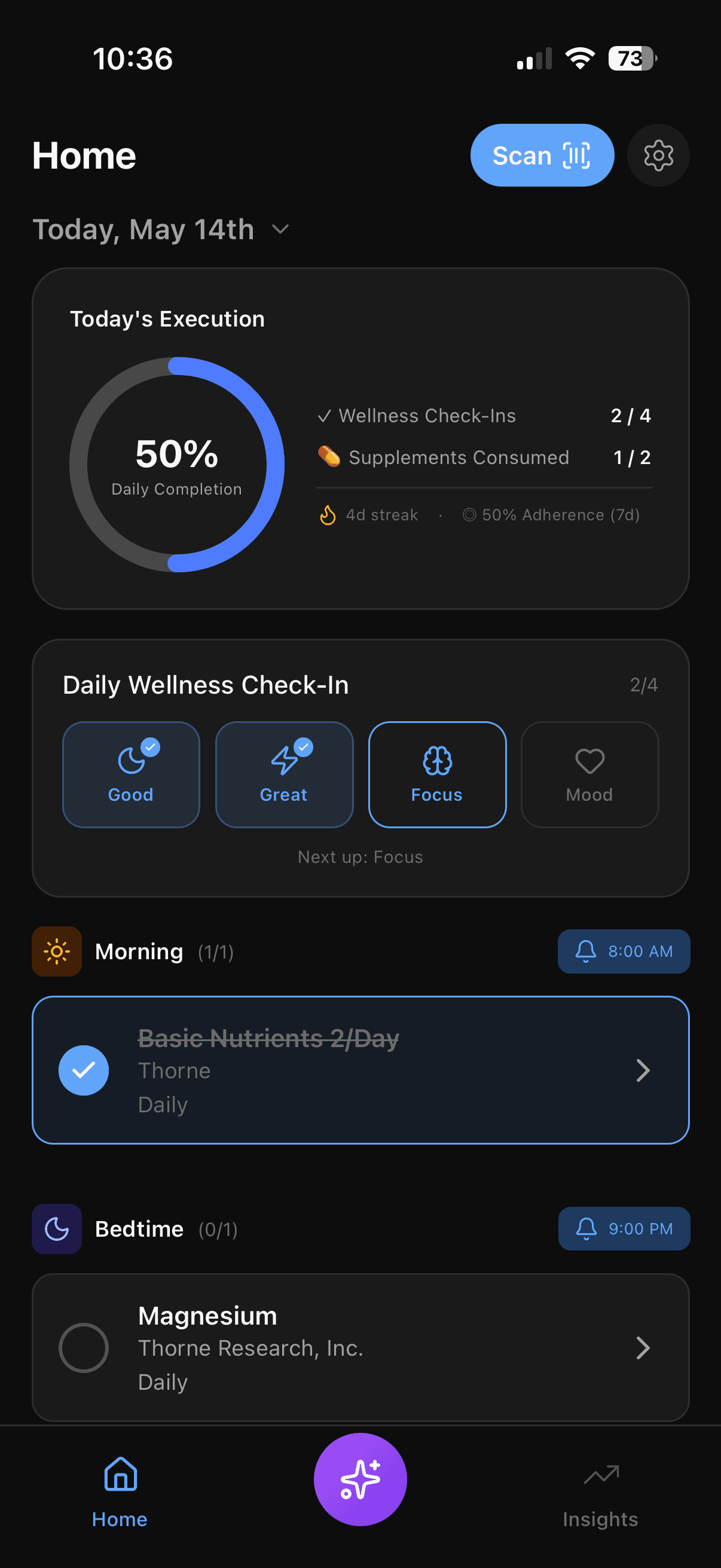
Compare the extracted values with the bottle, fix anything the camera misread, set your serving and timing, and save. The product joins your stack with its ingredients ready for totals and overlap checks.
What's free and what's Pro
Included free
- Barcode and Supplement Facts label scanner — Add a product from its barcode, or photograph the label when the barcode is not recognised.
- Supplement stack tracker — Every product you take in one place, with dose, form, and timing.
- Ingredient totals and overlap detection — See each ingredient totalled across every product, and where the same one appears twice.
StackIQ Pro
- Unlimited AI chat — Ask questions grounded in your actual stack, goals, and check-ins.
What it doesn't do
- It reads what's printed. It can't verify a label's claims or judge a product's quality.
- Proprietary blends that don't list per-ingredient amounts stay as blends — StackIQ can't total what the label doesn't state.
- Blurry photos, curved labels, and glare reduce accuracy; check the entry before saving.
- It doesn't scan food labels or medication packaging. Medications are added by name.
Frequently asked questions
Can I scan the Supplement Facts label if the barcode isn't recognised?
Yes. Tap Scan Facts Label and photograph the panel. StackIQ reads the ingredients and amounts into an entry you review and save. This works for products with no barcode match, including small brands and new formulas.
Can I review and correct what the scanner extracted?
Yes. Every scan produces an entry you check before it joins your stack. Compare it with the bottle and adjust any ingredient, amount, or serving the camera misread.
Does StackIQ tell a serving from a single capsule?
Entries are recorded per serving as printed on the label — for example, two capsules equals one serving. You set how many servings you actually take, so totals follow your real intake rather than the label alone.
Which scanning features are free?
Barcode scanning, Supplement Facts label scanning, search by name, and manual entry are all included in the free app. StackIQ Pro adds AI insights, unlimited AI chat, and advanced analytics — not scanning.
What happens to my label photos?
Photos are used to read the label into your entry. StackIQ doesn't sell health data to advertisers. The privacy policy at getstackiq.com/privacy explains what is stored and how AI features handle the information you enter.
Related
iPhone and Android · Free to download